01
Choose FLUX 3 when available
Open the shared Zelvune generator and select FLUX 3 from the video model list once the model is enabled for your account.
Create expressive videos from text, images, video references, and sound-aware direction. FLUX 3 brings native audio, keyframes, multi-shot chaining, multilingual dialogue, and video-to-video control into one creative workflow.
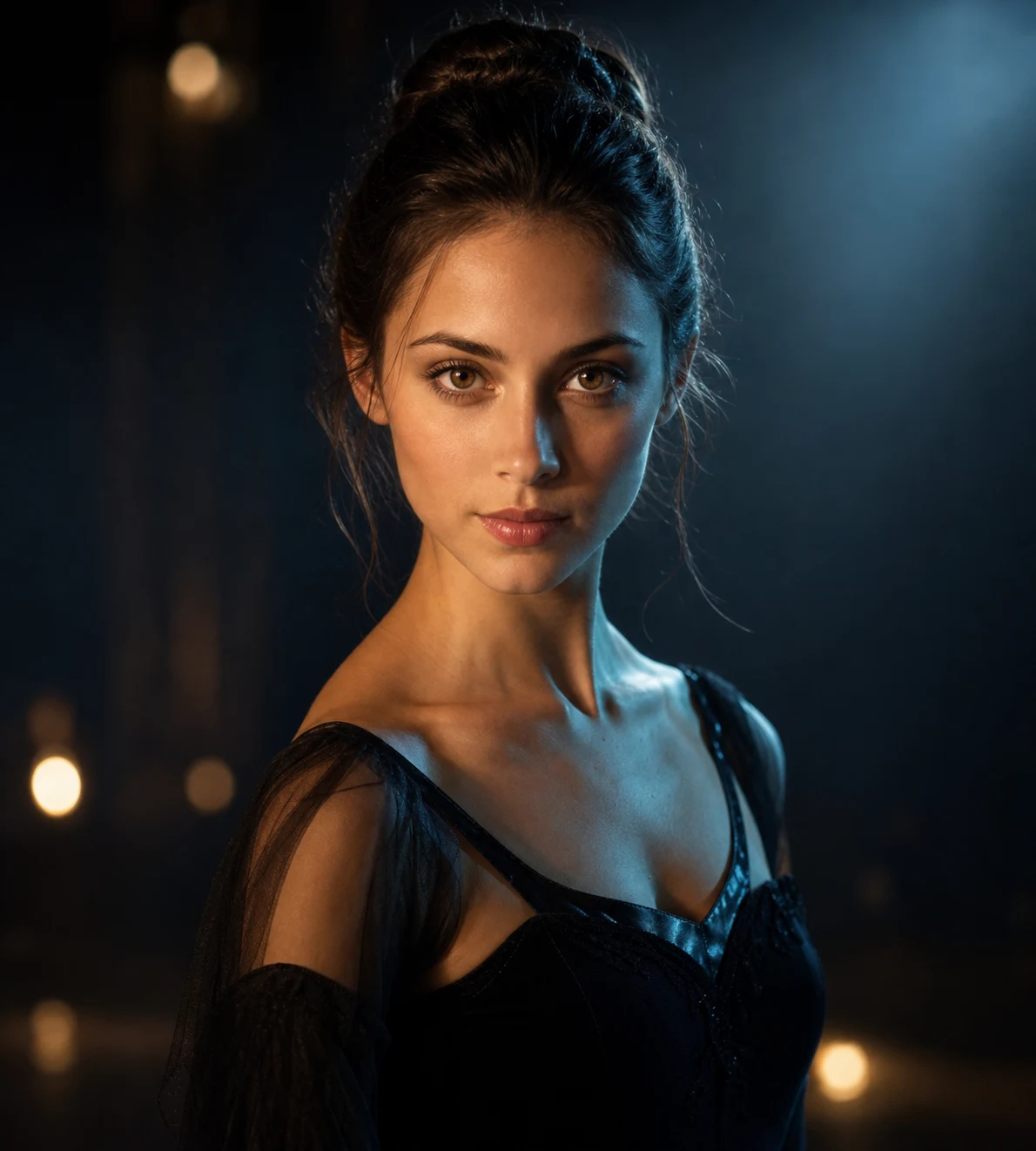
A real FLUX 3 sample showing how visual direction, motion, and sound can come together in one generated sequence.
FLUX 3 is a multimodal video model for turning an idea into a directed, sound-aware sequence. It accepts text, images, video references, and keyframe instructions so the prompt can carry intent while the references carry detail.
Use it for cinematic scenes, product stories, social clips, dialogue, animated typography, visual experiments, and connected multi-shot concepts.
FLUX 3 generates clips with synchronized sound, multilingual dialogue, ambience, and effects.
Combine prompts with visual references to guide identity, composition, motion, and style.
Start from keyframes, chain shots, and direct camera movement for more deliberate sequences.
Extend, transform, or continue an existing clip while preserving the intent of the original scene.
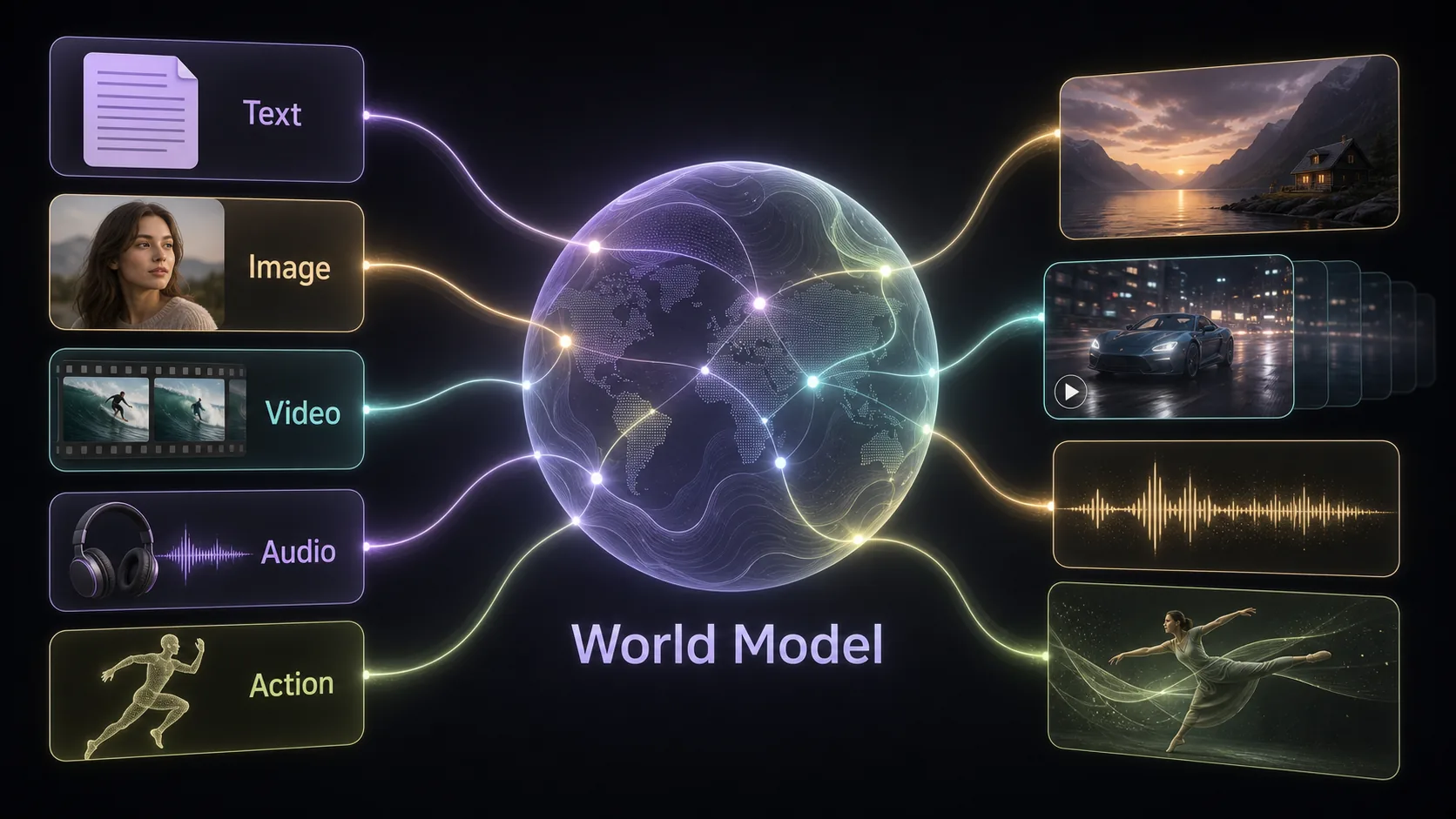
Give each input a clear role, then let FLUX 3 connect visual direction, motion, sound, and sequence structure in one generation brief.
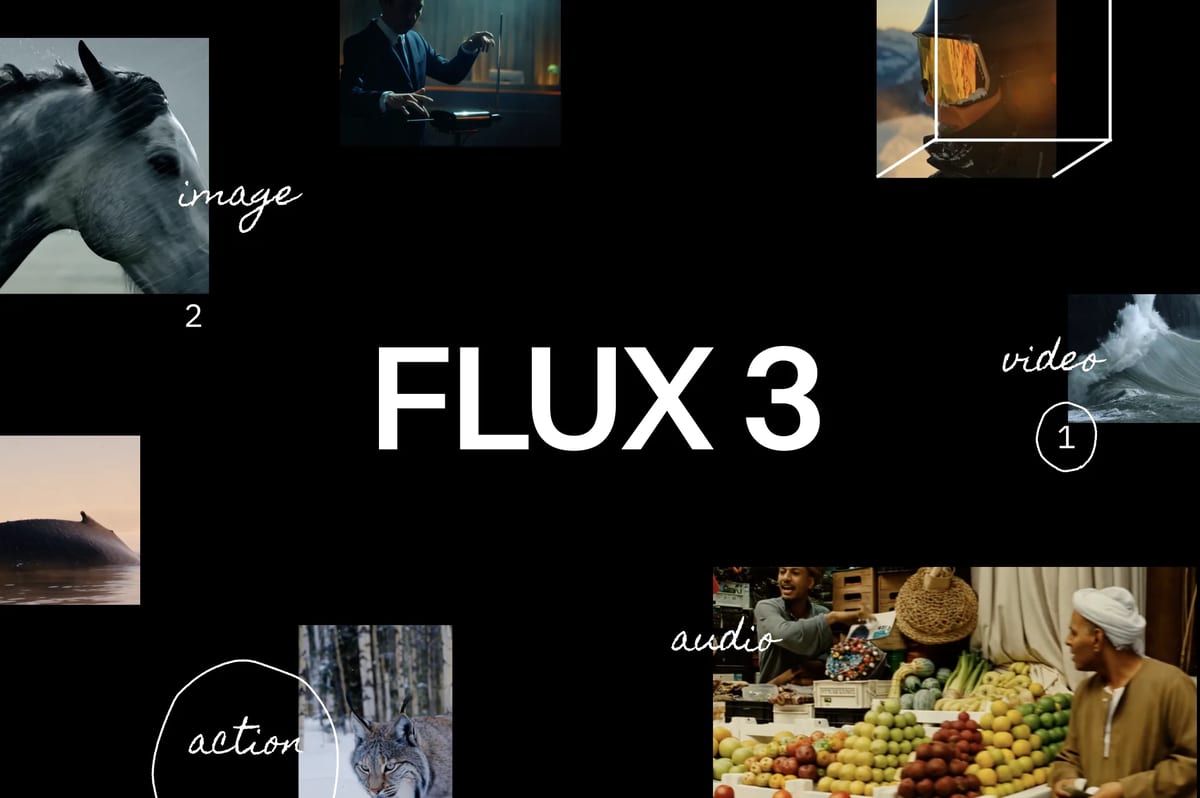
FLUX 3 can create synchronized audio alongside the visuals: dialogue, sound effects, ambience, and music cues. Describe the sound design in the same prompt as the action to plan a more finished clip from the first generation.
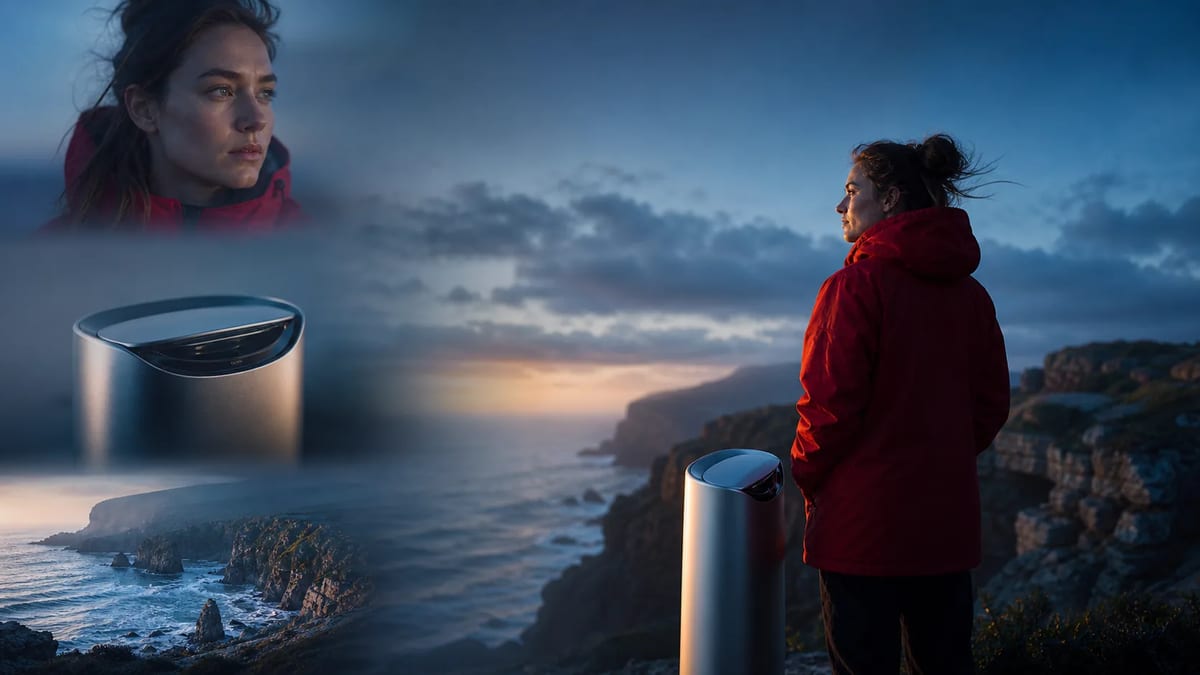
Use images for characters, products, locations, or style; use video for movement and camera language; then use text to connect the references into one shot. FLUX 3 is designed for workflows where the idea is bigger than a single prompt.
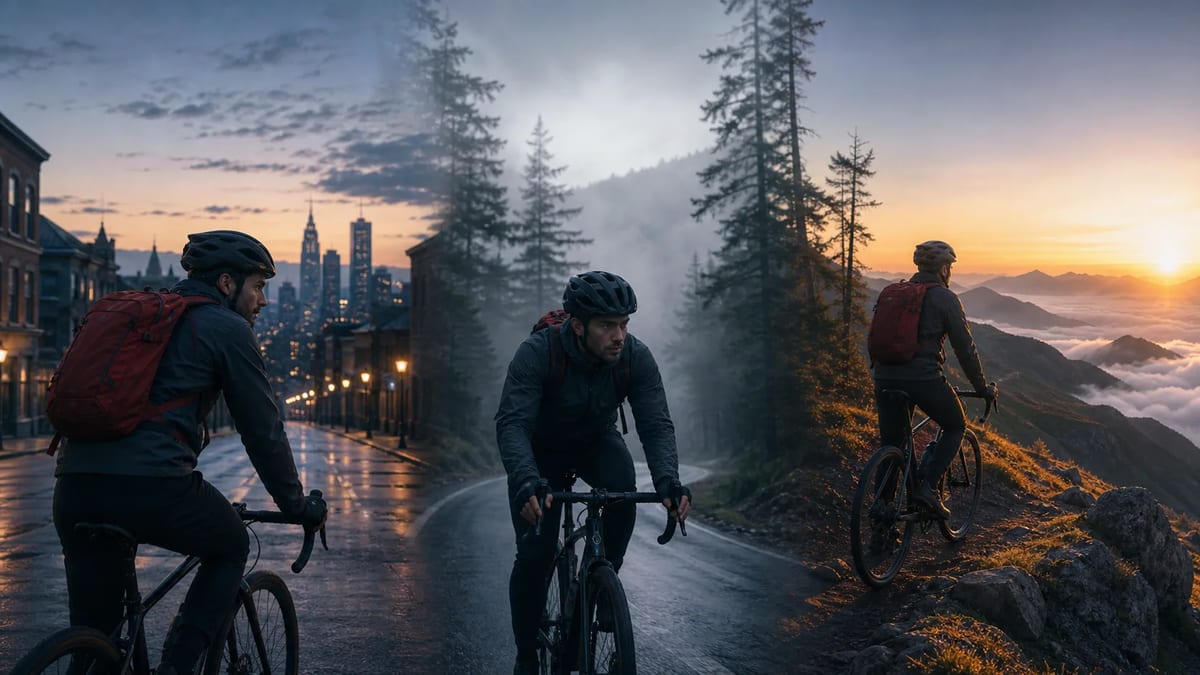
Define how a sequence begins and ends, then build connected shots with consistent subjects, pacing, and camera intent. This is useful for product reveals, narrative transitions, and short-form sequences that need more than one isolated clip.
Use references and precise prompts to move between product scenes, illustrations, landscapes, characters, and graphic compositions without changing the core workflow.
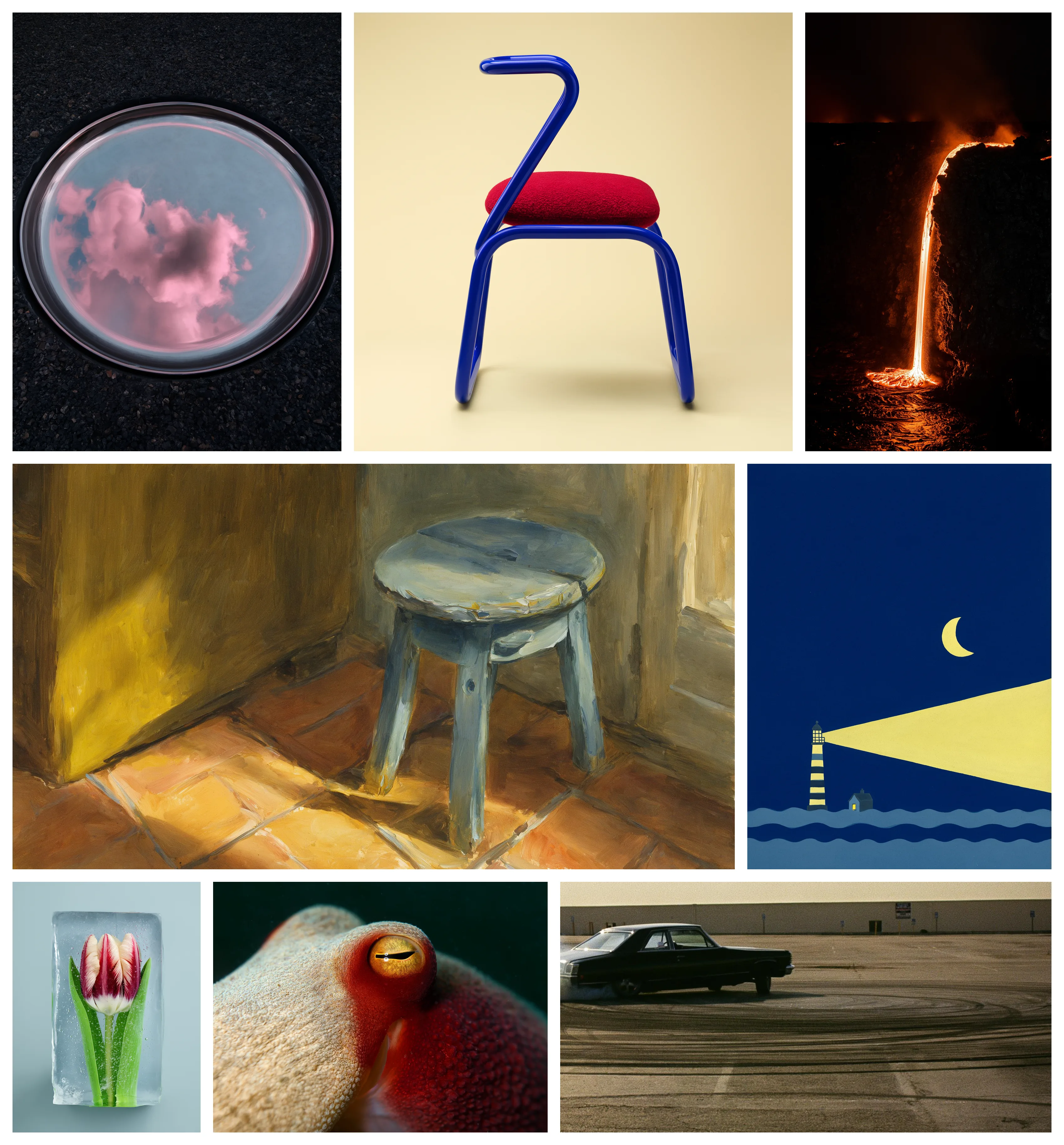
FLUX 3 is a strong fit for teams that need more control than a single text prompt can provide.
Turn a single idea into vertical hooks, dialogue-led shorts, music clips, and fast creative variations.
Prototype product stories, campaign concepts, localized ads, and sound-on social placements.
Test storyboards, shot transitions, camera direction, and FLUX 3 continuations before production.
Create polished product reveals with controlled references, camera movement, typography, and sound.
Write multilingual conversations and direct performance, pacing, ambience, and shot composition together.
Explore keyframes, transitions, multi-shot sequences, and visual tone before committing production time.
Use source images or clips to guide a new subject, movement pattern, framing style, or visual treatment.
Generate multiple hooks, aspect ratios, product angles, and voice-led versions from one creative brief.
Direct animated titles, signage, labels, and graphic elements as part of the generated shot.
Compare the workflows that matter when you need audio, reference control, connected shots, or cinematic polish.
| Capability | FLUX 3 | Seedance 2.0 | Veo 3 |
|---|---|---|---|
| Audio generation | Native synchronized dialogue, ambience, effects, and music cues | Model-dependent | Model-dependent |
| Reference inputs | Text, images, video, and multiple visual references | Primarily text and image workflows | Text and image workflows |
| Sequence control | Keyframes, multi-shot chaining, continuation, and video-to-video | Short standalone generations | Cinematic shot generation |
| Typography and dialogue | Designed for readable text, multilingual dialogue, and directable scenes | Varies by prompt and scene | Strong cinematic direction |
| Best fit | End-to-end multimodal video concepts and fast iteration | Text-first ideation | Polished cinematic scenes |
A reliable prompt names the subject, action, camera, composition, style, dialogue, sound design, references, shot order, and aspect ratio. Keep each instruction concrete and assign a clear job to every input.
A premium smartwatch floats above a black glass pedestal, slow macro push-in, warm rim light, crisp product typography appears on screen, a calm English voice says “Built for every move,” subtle electronic pulse and room ambience, 9:16 vertical ad.
Shot 1: a cyclist leaves a quiet city at dawn. Shot 2: cut to a close tracking shot through mist. Shot 3: finish on a wide mountain ridge at sunrise. Keep the same rider, jacket, bicycle, color grade, and natural wind sound across all shots.
Open the shared Zelvune generator and select FLUX 3 from the video model list once the model is enabled for your account.
Write the subject, action, camera, style, dialogue, sound design, and the role of each image or video reference.
Check the format and credit estimate, generate the clip, then refine a shot or continue the sequence using the result as context.
Subscribe for regular creation, or pick a credit pack for one-time projects.
Answers about native audio, references, keyframes, multi-shot generation, and prompting.
FLUX 3 is a multimodal AI video generation model designed to create video from text, images, video references, and audio-aware direction.
FLUX 3 can generate short-form video with native audio, multilingual dialogue, sound effects, animated typography, camera direction, and multi-shot sequences.
Yes. Use images to guide identity, products, environments, or style, and use video references to guide motion, pacing, framing, and camera language.
Yes. Prompts can direct dialogue, ambience, effects, music cues, and synchronized sound as part of the video generation workflow.
Yes. Keyframe-to-video workflows let you define the beginning and ending visual states of a shot and generate the motion between them.
Yes. Video-to-video and continuation workflows can extend, restyle, or build on an existing clip while preserving its creative intent.
Yes. Multi-shot chaining helps connect story beats while keeping subjects, styling, pacing, and camera direction aligned across the sequence.
Yes. You can write dialogue and scene direction in supported languages and specify the voice, delivery, pacing, and sound context in the prompt.
Name the subject, action, camera movement, composition, lighting, style, dialogue, sound design, references, shot order, and aspect ratio. Keep each shot direction concrete and assign a clear job to every reference.
Open the AI video generator, choose FLUX 3 when it is enabled, add your prompt and references, review the settings, and generate. The same shared generator keeps the workflow consistent across Zelvune model pages.
Bring text, images, video references, dialogue, sound, and multi-shot direction into one AI video workflow.